MCP Server
The Dreamdata MCP Server exposes your Dreamdata data to MCP-aware AI assistants such as Claude, Claude Code, Cursor, VS Code, ChatGPT, Lovable, Gumloop, Dust, and Writer. It lets you query and build on your Dreamdata data through your own agent without setting up any additional infrastructure.
You never need to call a tool by name. Describe what you want in plain language and your agent selects the right tools automatically. For the sake of completeness, the section below documents the tools the server exposes.
Available tools
The server exposes the tools below, grouped into four capabilities. This list is updated as functionality is added.
Run and explore reports
| Tool | What it does | You ask things like |
|---|---|---|
run_saved_report | Fetch and display the results from a saved Analytics Hub report. | "Run my quarterly ad performance report and plot the results." |
run_saved_report_for_date_range | Run a saved report over a custom date range you specify, without changing the saved report itself. | "Run my pipeline report, but just for last month." |
list_saved_reports | Browse the catalog of saved Analytics Hub reports in your Dreamdata account. | "What reports do I have about SQLs?" |
list_report_metric_drilldown_entities | Drill into the contacts, companies, stages, or deals behind a specific metric value in a report. | "In the deal-stage report, which companies are behind the SQL column?" |
Locate companies
Ask for the companies or contacts you care about in plain language. Your agent translates the question into an audience definition and runs it against your Dreamdata data, combining firmographics, behaviour (events and signals), and pipeline stages with time windows. The discovery tools in this group run behind the scenes to determine which filters and values are valid for your account; you will rarely invoke them directly.
Audiences your agent builds can also be saved to your Audience Hub, where you can reopen them in the editor or sync them to ad platforms and other destinations. Saving requires the optional Save Dreamdata Audiences permission on the authorization screen (see Authorizing). Your agent always shows you the audience name, type, folder, and current size and asks you to confirm before anything is saved. Saving only creates new audiences; it never changes or overwrites an existing one, or the syncs that use it.
| Tool | What it does | You ask things like |
|---|---|---|
list_my_accounts | Lists the Dreamdata accounts you can access (useful if you have access to multiple accounts). | "Which Dreamdata accounts can I access?" |
run_audience_query | Finds the companies or contacts matching your criteria. | "Which companies reached SQL in the last 90 days in Europe?" "Which companies visited our pricing page at least 3 times this month?" |
list_audiences | Browse the catalog of saved audiences in your Dreamdata account. | "What audiences do I have saved?" |
get_audience_definition | Reuses an audience you have already saved in Dreamdata. | "Who's in my 'ICP – Engaged' audience right now?" |
save_audience | Saves an audience your agent has built to your Audience Hub. Requires the optional Save Dreamdata Audiences permission, and only after you confirm the save. | "Save that list as an audience called 'EMEA SQLs – last 90 days'." |
list_audience_filter_properties | Behind the scenes: discovers what your account can filter on (company, contact, and event properties plus pipeline stages per revenue model). | (usually invoked automatically) |
list_audience_filter_values | Behind the scenes: finds the exact values a filter accepts. | (usually invoked automatically) |
describe_audience_config_schema | Behind the scenes: supplies the full structure for building more complex audience definitions. | (usually invoked automatically) |
Understand a company's journey
Once you have located the companies you care about, dig into how each one got where it is.
| Tool | What it does | You ask things like |
|---|---|---|
search_companies | Looks a company up by name. | "Show me Acme's journey." |
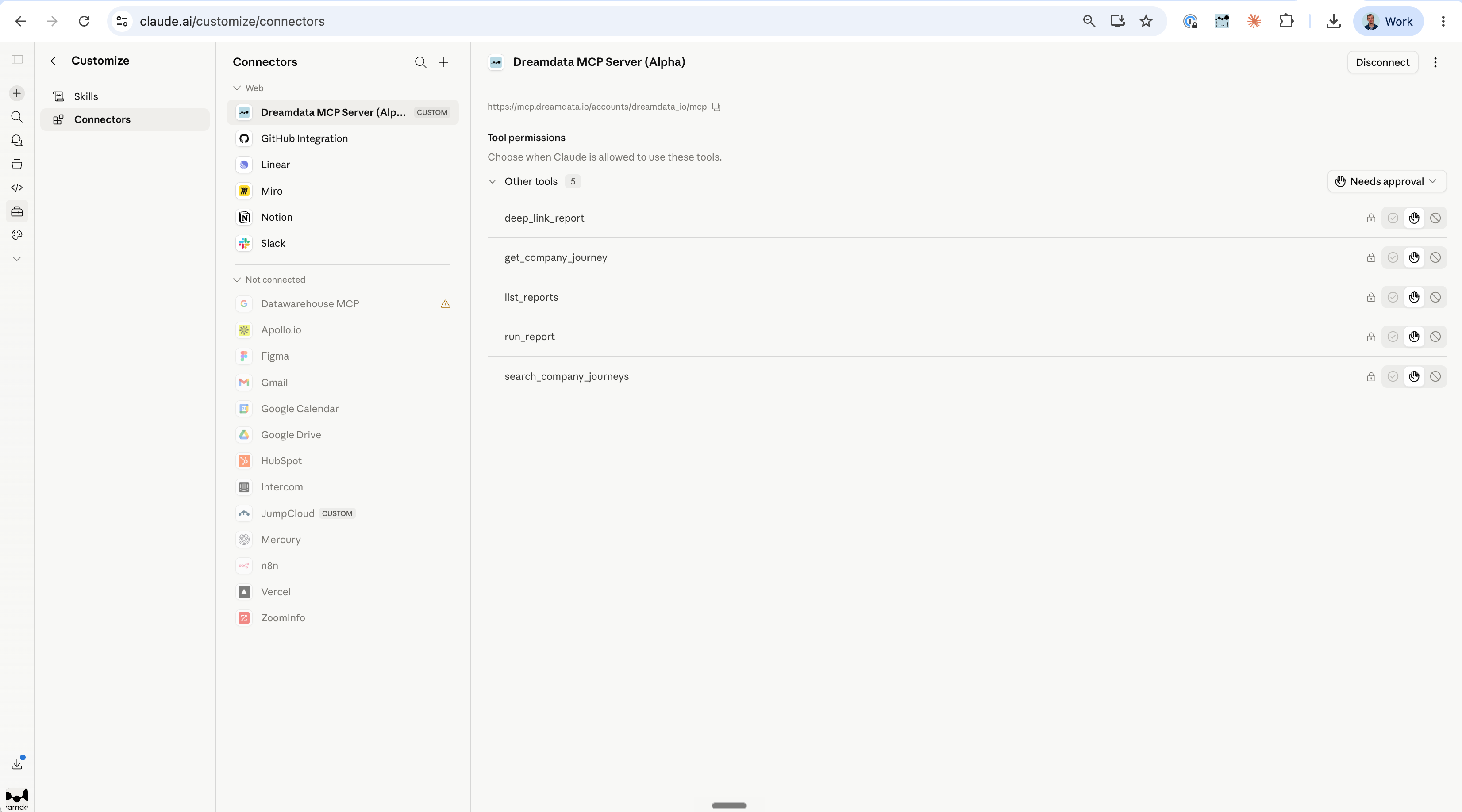
get_company_journey | Fetches a company's full journey: summary, contacts, sessions, and touchpoints. | "What happened at Acme after they reached SQL?" "Compare the journeys of 3 companies that reached SQL this month." |
list_company_journey_stages | Shows which pipeline stages a company reached, when, and at what value. | "When did Acme reach SQL, and what was the pipeline value?" |
Build a report from scratch
Beyond running reports you have already saved, your agent can build a new Analytics Hub report from scratch — choosing the analysis type, metrics, filters, segmentation, and time window — and then run it in the conversation. The tools in this group run behind the scenes to discover what your account supports and assemble a valid report.
Reports your agent builds can also be saved to your Analytics Hub. Saving requires the optional Save Dreamdata Reports permission on the authorization screen (see Authorizing), and your agent always asks you to confirm before anything is saved.
| Tool | What it does |
|---|---|
report_builder_start | Behind the scenes: starts the guided report-building flow and lists the analysis types your account can build on. |
report_builder_list_analysis_typesreport_builder_list_subjectsreport_builder_get_components | Behind the scenes: discover the analysis types, subjects, metrics, filters, and segmentation available for your report. |
report_builder_resolve_calendar_periodreport_builder_resolve_rolling_window | Behind the scenes: translate a period like "Q1 2025" or "the last 45 days" into the report's time window. |
report_builder_list_property_valuesreport_builder_search_property_values | Behind the scenes: find and confirm the exact filter values to use. |
report_builder_run_config | Behind the scenes: validates and runs the assembled report and returns the results. |
report_builder_save_report | Saves a report your agent has built to your Analytics Hub. Requires the optional Save Dreamdata Reports permission, and only after you confirm the save. |
Server URL
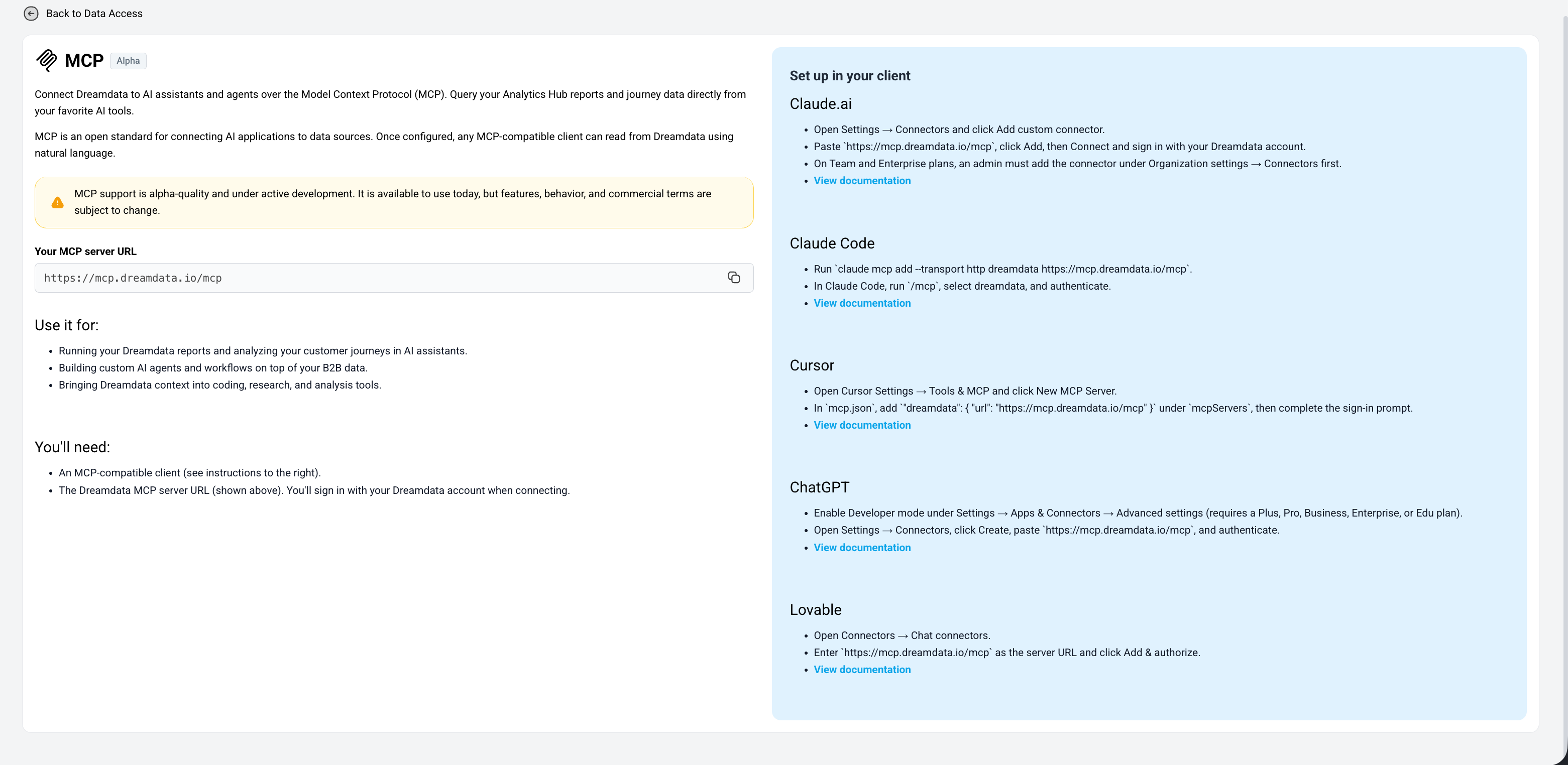
The MCP server uses a single URL for every account:
https://mcp.dreamdata.io/mcp
You sign in with your Dreamdata login when connecting — no account-specific URL
is needed. If you have access to several Dreamdata accounts, your agent selects
the right one per request (the list_my_accounts tool shows the options); with
a single account you are connected automatically.
You can also find the URL, along with setup instructions for each supported client, in Dreamdata under Data Platform > Data Access, in the tile labeled MCP.
Connecting a client
In Claude, Dreamdata is listed in the connector directory, so you can install it without entering the server URL. Every other client uses the server URL above in its own custom-connector flow.
Claude
Dreamdata is published in the Claude connector directory:
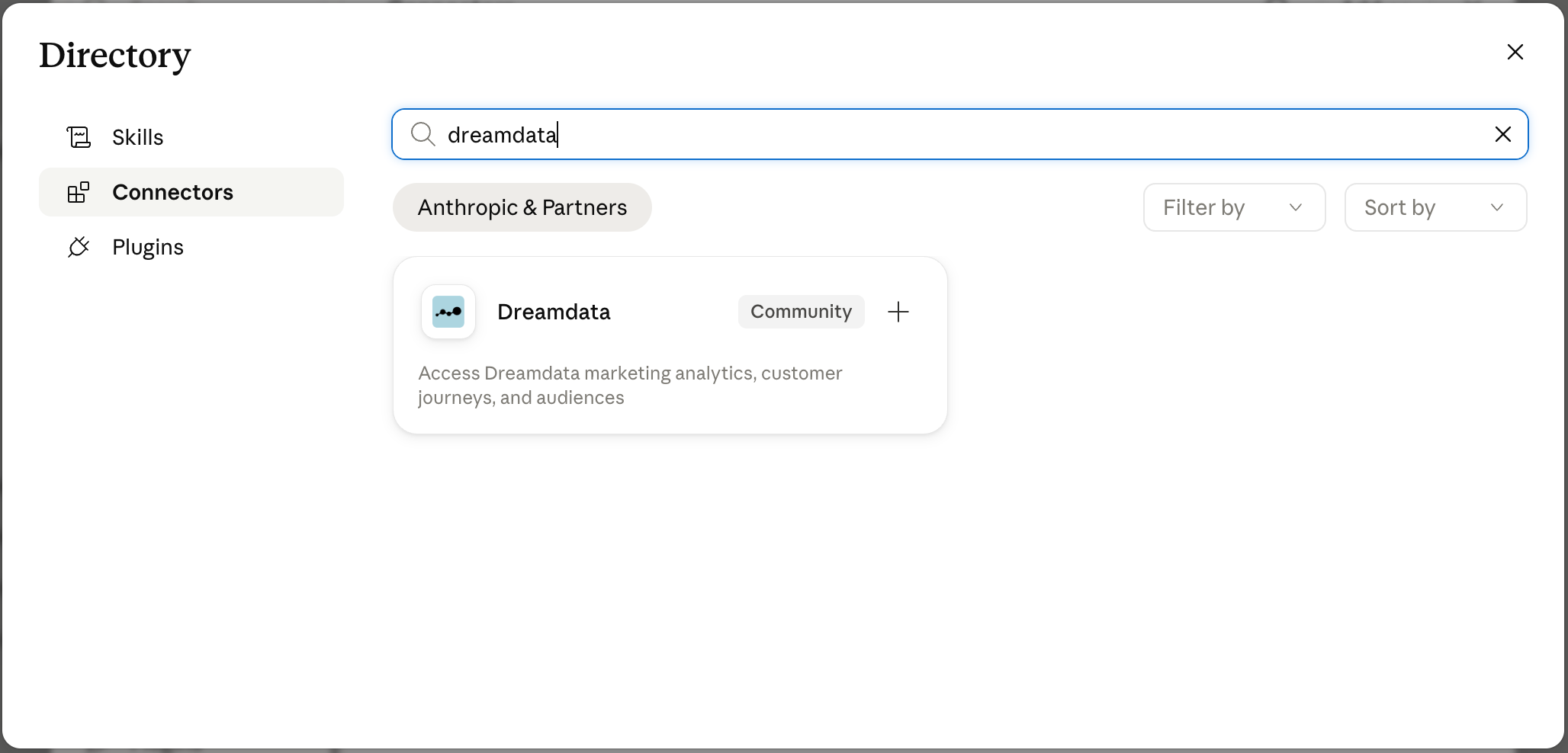
- Go to Settings → Connectors and click Browse connectors.
- Search for Dreamdata and click + on the Dreamdata card.
- Click Connect and sign in with your Dreamdata account.
On Team and Enterprise plans, an admin must make the connector available to the organization first, under Organization settings → Connectors.
Adding Dreamdata as a custom connector instead
If you would rather add the server by URL — or you are on a Claude plan or client where the directory is not available — use the custom-connector flow.
Pro / Max (individual) plan:
- Go to Settings → Connectors.
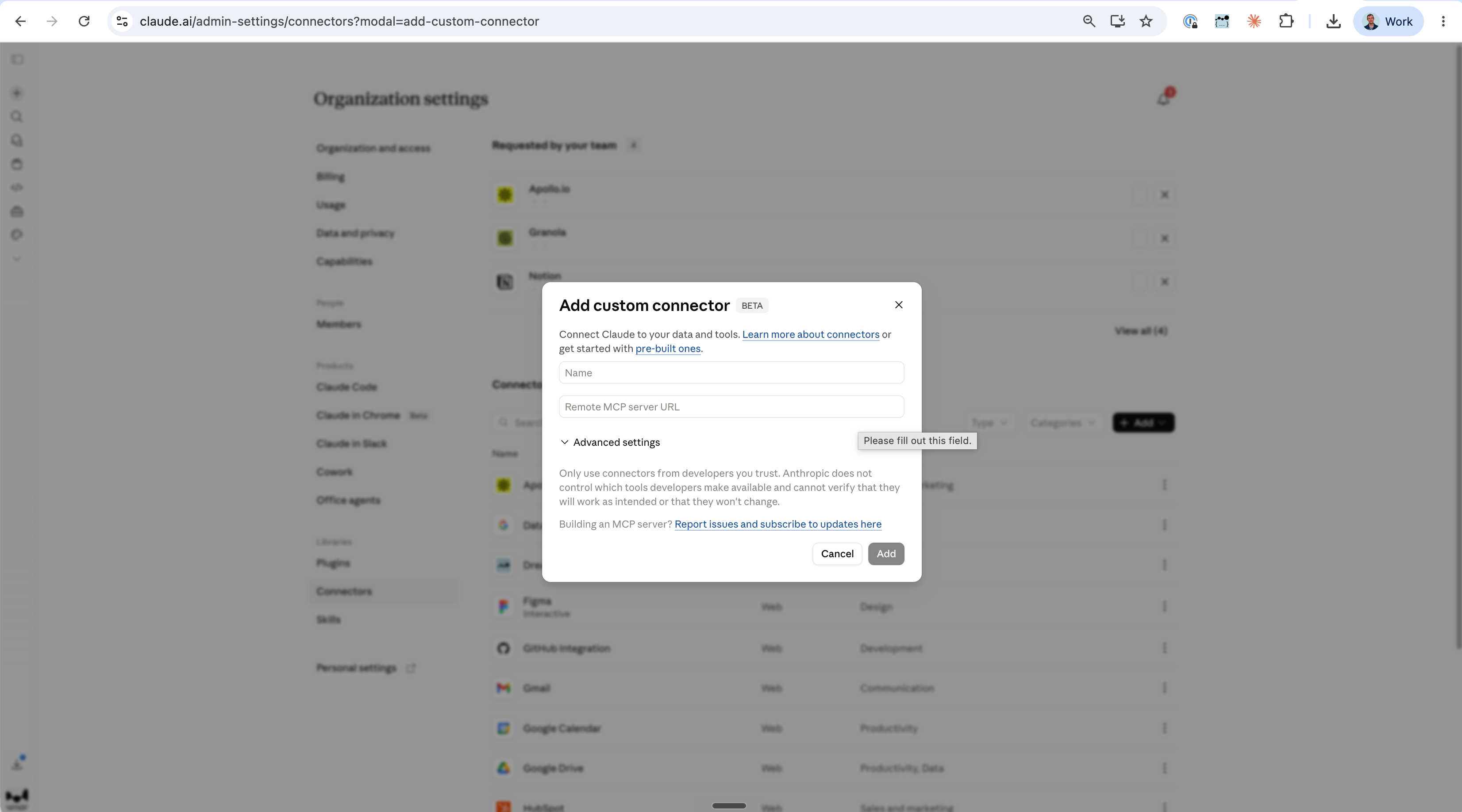
- Click Add custom connector.
- Enter the server URL:
https://mcp.dreamdata.io/mcp. - Click Add. You are redirected to sign in via Dreamdata's OAuth flow — use your normal Dreamdata login.
- Once authenticated, the connector is available in any conversation.
Team / Enterprise plans — workspace owner, one-time setup:
- Go to Organization settings → Connectors.
- Click Add, hover Custom, and select Web.
- Enter the server URL:
https://mcp.dreamdata.io/mcp. - Click Add.
Team / Enterprise plans — team members, enable per user:
- Go to Settings → Connectors.
- Find the connector marked Custom.
- Click Connect and complete the MCP login flow.
Claude Code
- Run
claude mcp add --transport http dreamdata https://mcp.dreamdata.io/mcp. - In Claude Code, run
/mcp, select dreamdata, and authenticate.
See the Claude Code MCP documentation.
Cursor
- Open Cursor Settings → Tools & MCP and click New MCP Server.
- In
mcp.json, add"dreamdata": { "url": "https://mcp.dreamdata.io/mcp" }undermcpServers, then complete the sign-in prompt.
See the Cursor MCP documentation.
VS Code
The Dreamdata tools are available in GitHub Copilot Chat in VS Code.
-
Open the Command Palette and run MCP: Add Server.
-
Choose HTTP, enter
https://mcp.dreamdata.io/mcp, name the serverdreamdata, and choose where to save it. -
Alternatively, add the server to
.mcp.jsonat the root of your workspace:{"mcpServers": {"dreamdata": {"type": "http","url": "https://mcp.dreamdata.io/mcp"}}}If you use
.vscode/mcp.jsoninstead, the top-level key isservers. -
Start the server when VS Code asks you to trust it. A browser window opens to sign in with your Dreamdata account.
-
In the Chat view, select Configure Tools to check that the Dreamdata tools are turned on.
See the VS Code MCP documentation.
ChatGPT
- Go to ChatGPT Plugins and select the + button.
- Enter a user-facing name and description for the plugin.
- Under Connection, choose the connection method. For a public endpoint,
enter the MCP server URL
https://mcp.dreamdata.io/mcp— it must include the/mcppath. - Expand Advanced OAuth settings, scroll to OpenID support, and clear the OIDC enabled checkbox. Then authenticate with your Dreamdata account.
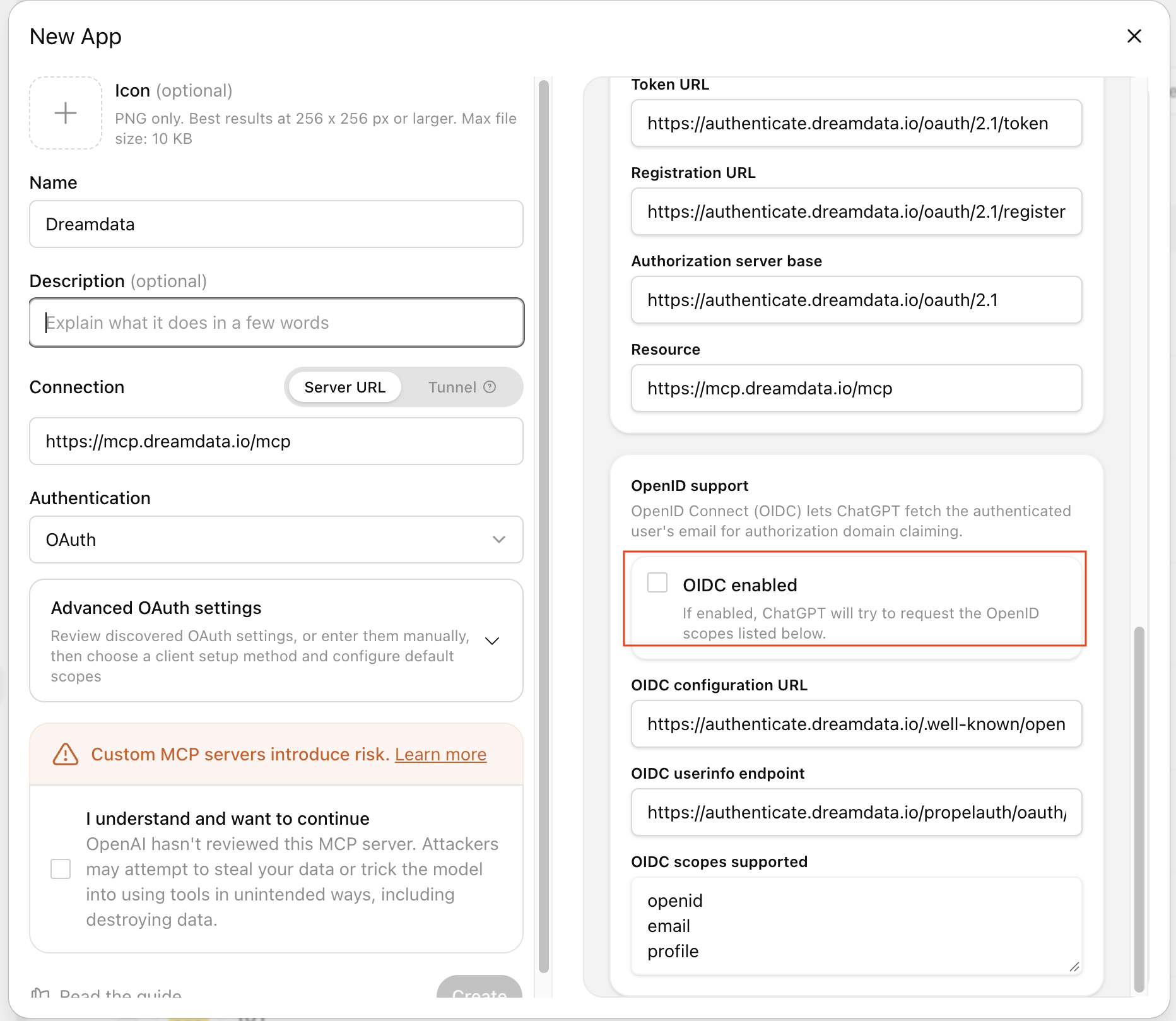
See the ChatGPT plugin documentation.
Lovable
- Open Connectors → Chat connectors.
- Enter
https://mcp.dreamdata.io/mcpas the server URL and click Add & authorize.
See the Lovable MCP documentation.
Gumloop
- Open Settings → Connectors, click the arrow next to Add Connector, and select Add MCP Connector.
- Choose the Public URL connection type, enter
https://mcp.dreamdata.io/mcp, and click Connect. - Gumloop detects the authentication method automatically — click Authenticate and sign in with your Dreamdata account.
- To use the tools in a flow, open your agent settings, go to Connectors, click Add Connector, and select Dreamdata.
See the Gumloop custom MCP server documentation.
Dust
A workspace admin adds the server once for the whole workspace:
- Go to Spaces → Tools, click Add Tool, then Add MCP Server.
- Enter
https://mcp.dreamdata.io/mcpand keep the Automatic authentication option — Dust discovers Dreamdata's OAuth configuration from the URL and starts the sign-in flow. - Once the server has finished syncing, builders can attach the Dreamdata tools to their agents.
See the Dust remote MCP server documentation.
Writer
An AI Studio admin creates the connector once for the organization:
- In AI Studio, go to Connectors & Tools and select Create custom connector.
- Choose MCP server, enter
https://mcp.dreamdata.io/mcp, add a Connector name (for example, Dreamdata) and an About this connector description, and select Next. - Select which teams have access, then choose OAuth as the authentication method.
- Enter the scopes to request:
read(required), plusreports:writeandaudiences:writeif you want your agent to be able to save reports and audiences (see Authorizing). You do not need a client ID or client secret — Writer registers with Dreamdata automatically. - Select user level so each person signs in with their own Dreamdata login, then complete the connection flow.
Once configured, the Dreamdata tools are available to authorized users in WRITER Agent.
See the Writer custom connectors documentation.
OAuth configuration
Most clients discover the server's OAuth endpoints automatically. If your client does not support OAuth endpoint discovery, configure the endpoints manually:
| Setting | Value |
|---|---|
| Authorization URL | https://authenticate.dreamdata.io/oauth/2.1/authorize |
| Token URL | https://authenticate.dreamdata.io/oauth/2.1/token |
OAuth 2.1 with SHA-256 PKCE required
The server only supports OAuth 2.1 authorization with SHA-256 PKCE. Clients that do not support OAuth 2.1 or SHA-256 PKCE cannot connect.Registering a different client
The server uses an allowlist of OAuth clients. If your MCP client is not recognised during sign-in (including Gumloop or Dust if they are not yet on the allowlist), contact mcp-feedback@dreamdata.io to have it listed.
Authorizing
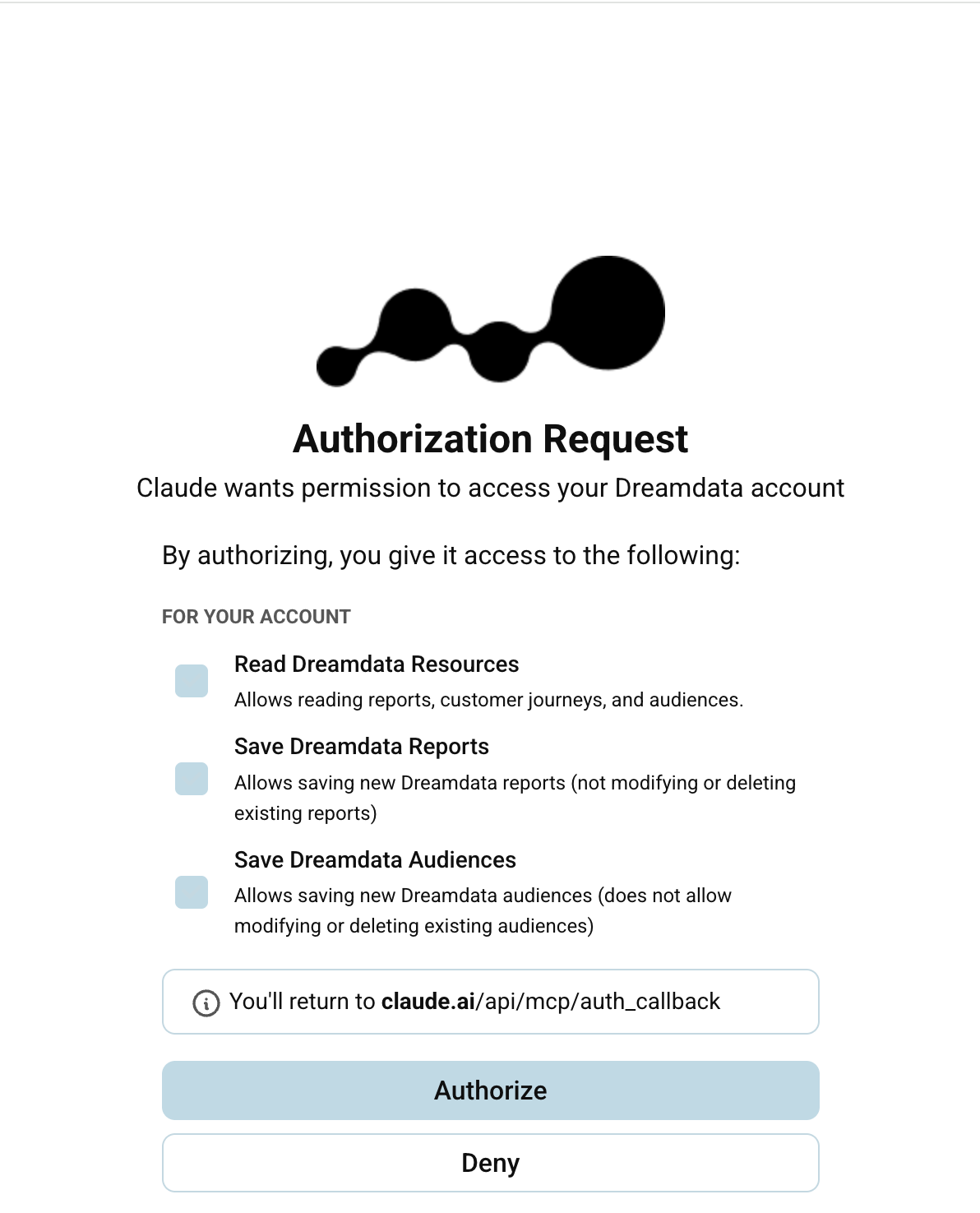
When you connect, Dreamdata asks you to authorize access. Three permissions are presented:
- Read Dreamdata Resources (required) — allows reading reports, customer journeys, and audiences.
- Save Dreamdata Reports (optional) — allows saving new reports your agent builds to your Analytics Hub. It cannot modify or delete existing reports. Grant it if you want to use report saving; your agent always confirms with you before saving.
- Save Dreamdata Audiences (optional) — allows saving new audiences your agent builds to your Audience Hub. It cannot modify or delete existing audiences. Grant it if you want to use audience saving; your agent always confirms with you before saving.
Using the connector in a conversation
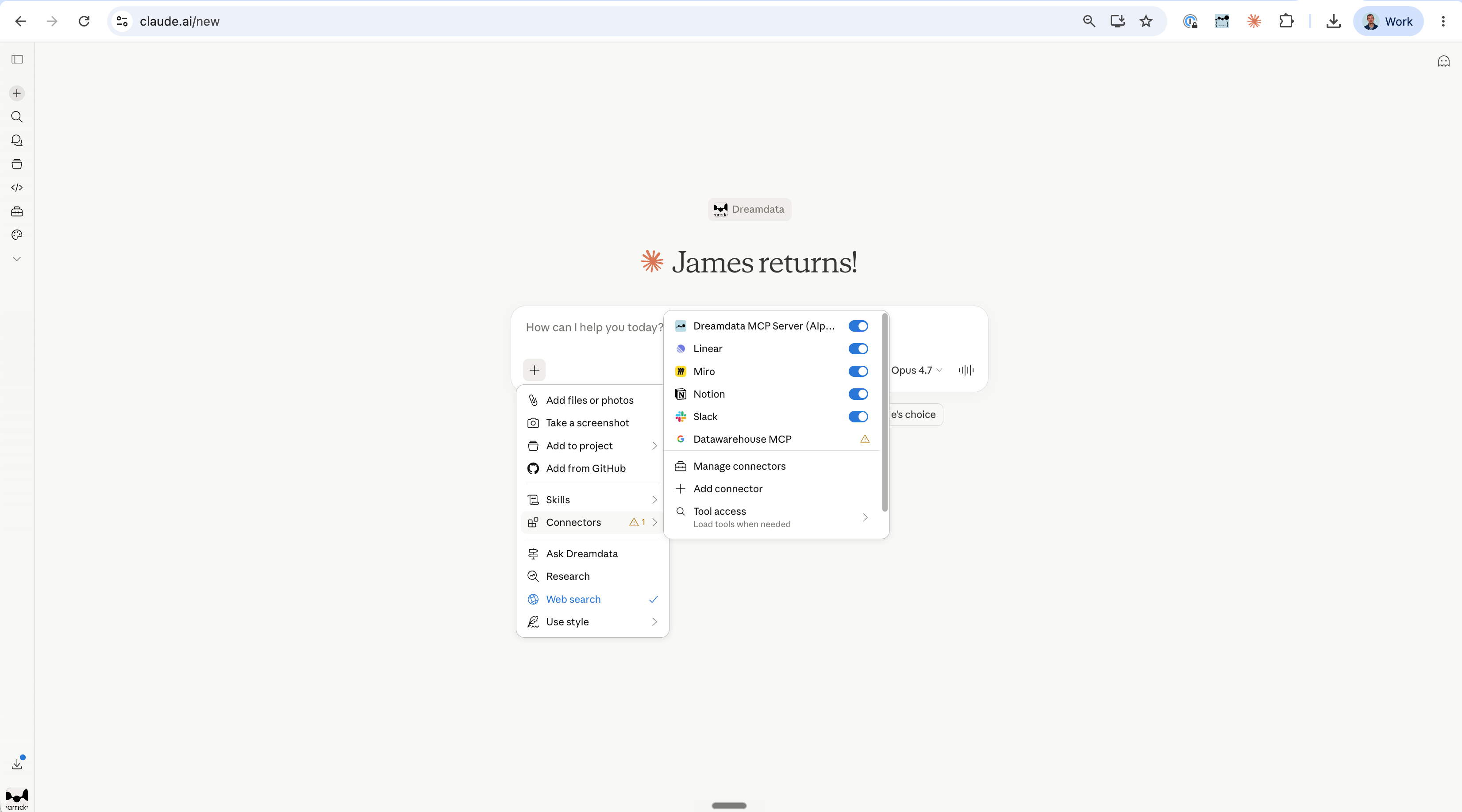
In any conversation, click the + button (lower-left of the composer), choose Connectors, and toggle Dreamdata on. The tools appear in your client's tool menu for that conversation.
Things to try
- "List all my saved reports."
- "Run the 'Pipeline by Source' report and show me the last 30 days."
- "Search for companies named Acme and show me the journey of the top match."
- "For the deal-stage report, drill down into the SQL column and list those companies."
- "Which companies reached SQL in the last 90 days in Europe?"
- "Save those companies as an audience called 'EMEA SQLs – last 90 days'."
- "Compare the journeys of 3 companies that reached SQL this month."
Troubleshooting
If you run into errors, your agent may pass along an error code that helps pinpoint what to do.
- No tools appear after connecting. If you see "MCP server is not enabled for this user. Contact your Dreamdata account owner", email mcp-feedback@dreamdata.io.
- 401 Unauthorized. Your session has expired or the token is invalid. Disconnect and reconnect the connector to re-authenticate.
- 403 Forbidden. You are authenticated but not a member of the Dreamdata
account being queried. Ask your agent to run
list_my_accountsto see which accounts you can access, or contact your Dreamdata account owner. - 502 from the connector. The Dreamdata internal API is unreachable. This is a server-side problem; contact mcp-feedback@dreamdata.io.
Feedback
We want to hear which capabilities and workflows you would like to see next. Send feedback to mcp-feedback@dreamdata.io.